7 min read
What Is System Data on Mac? (macOS 27 & 26 Guide)
System Data is the catch-all storage category in macOS. What it contains on macOS 27, what's safe to reduce, and what to leave alone.
storagecleanupmacos-27
Freshist's Analyze tool draws your storage as an interactive treemap, so the biggest folders are the biggest boxes. Hardlinked files are counted once, and you can drill into any folder.
Launch price$19$9 once · lifetime updates · 3 Macs · 14-day refund
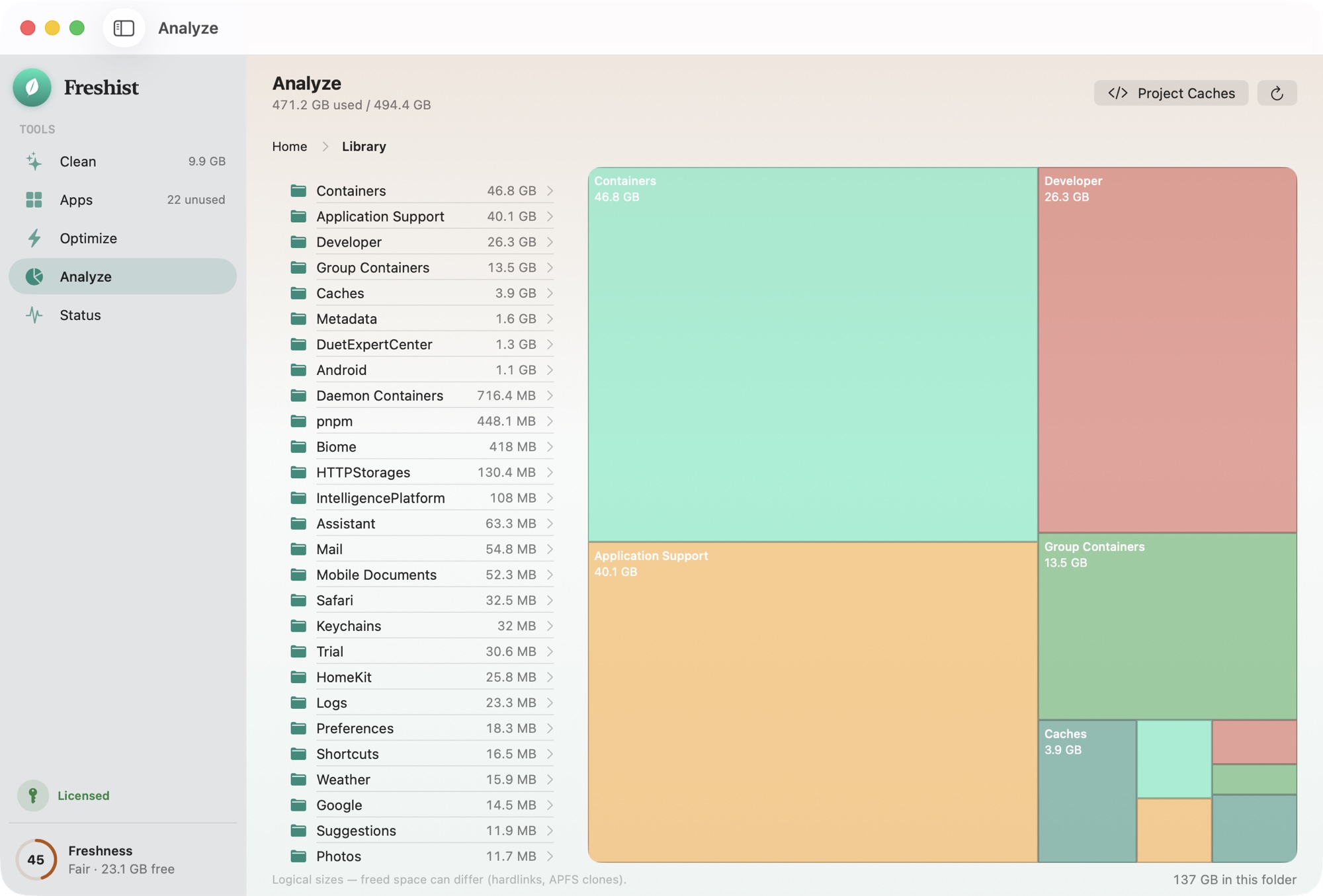
An interactive treemap of your storage, hardlink-aware so nothing is double-counted. Spot the forgotten 40 GB folder in seconds, then act on it — safely.
Every file is listed with its exact size before anything happens. No blind “one-click clean”.
Everything goes to the Trash so you can undo. Permanent deletion is separate and explicitly confirmed.
Risky or ambiguous items are never pre-selected. They're flagged “review” for you to decide.
No analytics, no accounts, no tracking network calls. It's a design constraint, not a promise.
The full list of protected locations and how files owned by macOS are handled: what Freshist never deletes.
Comparison reflects the common Mac-cleaner category at time of writing, not any single product. See the full comparison.
macOS has a storage overview under System Settings › General › Storage. It splits your disk into categories such as Applications, Documents and System Data and suggests a few cleanups. It's a good place to start, but it doesn't tell you which folders are large. If System Data shows a big number, you can't click through to see what's inside it. Our guide to System Data on a Mac explains what usually ends up there.
A disk space analyzer answers the next question: where, exactly, is the space?
Analyze draws your storage as a treemap. Every folder is a rectangle, and its area matches its size. Folders sit inside their parent folders, so the layout follows your disk's structure.
This works better than a sorted list for one reason: you see the whole disk at once. A large folder buried four levels deep is as easy to spot as one at the top level, so you don't need to know where to look. Click into the largest block to see what's inside, and keep going until you reach the files themselves.
A hardlink is a second name for the same data on disk. Package managers, build tools and some backup systems use hardlinks to avoid storing the same file twice. An analyzer that adds up the size of every path counts that data once per link, and the total can come out larger than your disk.
Analyze is hardlink-aware: each piece of data is counted once. The numbers in the treemap add up to what's really on your disk, so the folder that looks biggest really is the biggest.
Every Mac is different, but a few things come up again and again when people first look at a treemap:
~/Library/Application Support/MobileSync/Backup.Once you know where the space went, the right tool depends on what you found:
When something does go through Freshist, the rules are the same everywhere: you see it first, and items from your user folder go to the Trash. Freshist won't move macOS system folders or your main personal folders themselves. The safety page has the details.
A treemap makes large folders easy to find, which also makes it easy to delete the wrong thing in a hurry. A few questions are worth asking first:
~/Library usually belongs to an app, and removing it by hand can break that app. Removing the app with its leftovers is the cleaner route.macOS hides some folders from every app until you grant it Full Disk Access. Without it, any disk analyzer will show less than what's really on your disk. The Help page explains how to grant it to Freshist.
Analyze isn't sold separately. It comes with Clean, Apps, Optimize and Status in a single license: $9 once, with lifetime updates, on up to 3 Macs, and a 14-day refund if it isn't for you. Scanning is always free. The app runs on macOS 14 Sonoma or later, on Apple silicon and Intel, and sends no telemetry.
System Settings › General › Storage gives you totals by category. To see which folders are actually large, use a disk space analyzer. A treemap shows every folder as a block sized by how much space it uses, so the biggest ones stand out straight away.
A hardlink lets the same data appear at more than one path. An analyzer that adds up every path counts that data several times and can report more space than your disk has. Freshist counts each piece of data once, so the numbers add up.
No. It shows you where the space went. When you decide something should go, you see it first and it goes to the Trash, the same as everywhere else in Freshist.
macOS keeps some space that no folder view can show directly, such as local Time Machine snapshots and purgeable storage it frees when it needs room. Our guides to System Data and local snapshots explain where that space goes.
Yes. Scanning is always free, and the free trial includes 2 cleans. A license costs $9 once and includes lifetime updates.
Every cache category, its exact path, risk level and whether it's pre-selected.
The folders Freshist checks for an app's leftovers when you uninstall it.
Protected locations, files owned by macOS, and why everything else goes to the Trash.
Freshist next to the typical Mac cleaner, row by row.
7 min read
System Data is the catch-all storage category in macOS. What it contains on macOS 27, what's safe to reduce, and what to leave alone.
7 min read
Local Time Machine snapshots can hold on to disk space. How to see them, which ones are safe to remove, and Apple's way to clear them on macOS 27 and 26.
7 min read
After upgrading to macOS 27 Golden Gate, free space often drops. What took it, what comes back on its own, and what you can safely reclaim.
7 min read
Where Xcode, simulators, npm, pnpm, Homebrew, Docker, pip, uv and AI model caches live on a Mac, what rebuilds, and each tool's own cleanup command.
One-time $9. Lifetime updates. 3 Macs. A 14-day refund if it isn't for you.
Launch price — $19 $9 for a limited time.