8 min read
How to Completely Uninstall Apps on Mac (No Leftovers)
Dragging an app to the Trash can leave files behind. The safe way to remove an app, its Library leftovers, login items and helpers on macOS 27 and 26.
appscleanupstorage
Dragging an app to the Trash leaves its support files, caches and preferences behind. Freshist's Apps tool finds them, shows you the full list with sizes, and removes only what you approve.
Launch price$19$9 once · lifetime updates · 3 Macs · 14-day refund
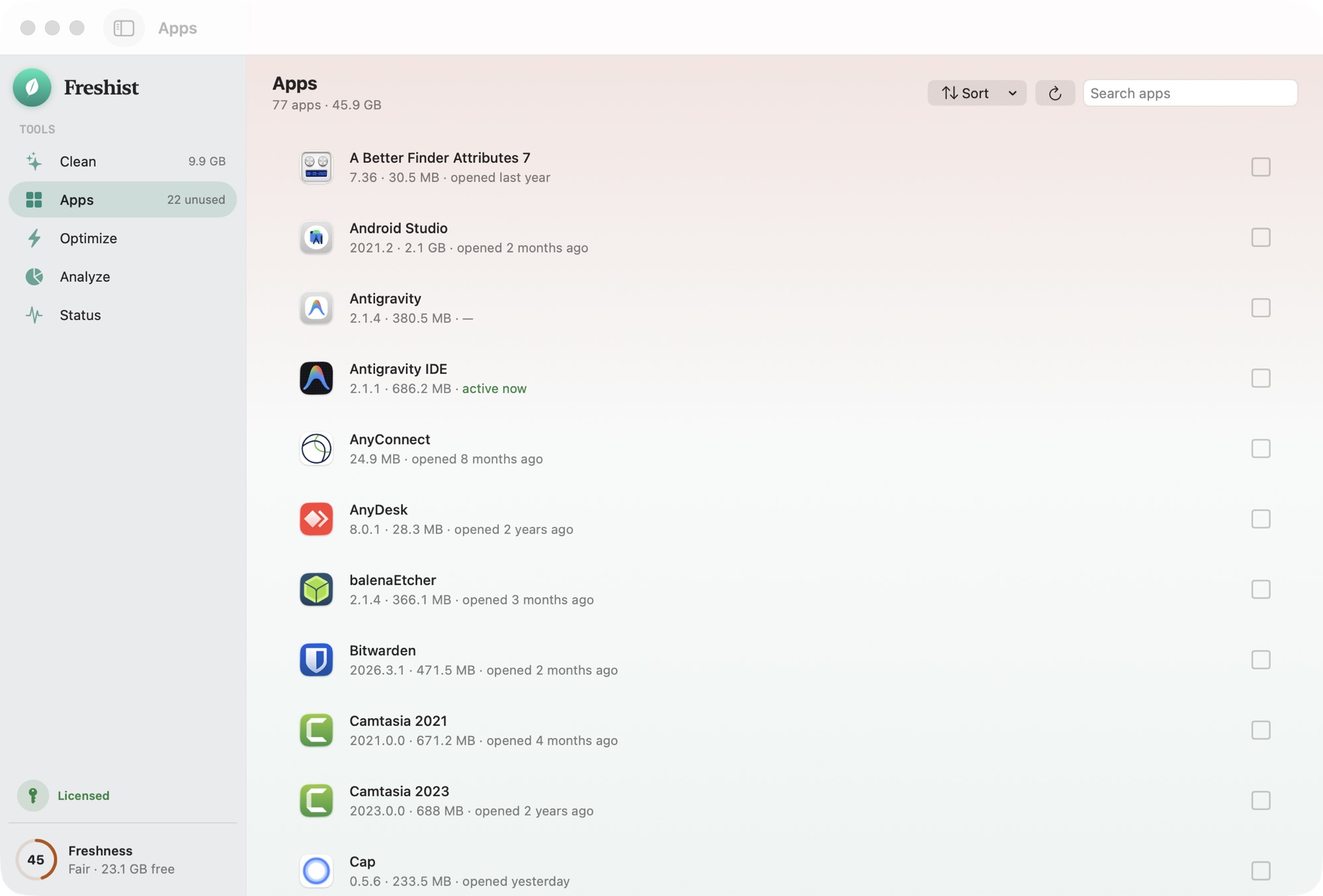
Dragging an app to the Trash leaves support files, caches and preferences scattered across your disk. Freshist finds every related file so an uninstall is actually an uninstall.
Every file is listed with its exact size before anything happens. No blind “one-click clean”.
Risky or ambiguous items are never pre-selected. They're flagged “review” for you to decide.
Everything goes to the Trash so you can undo. Permanent deletion is separate and explicitly confirmed.
A plain, local log of every destructive action lives on your Mac, readable any time.
The full list of protected locations and how files owned by macOS are handled: what Freshist never deletes.
Comparison reflects the common Mac-cleaner category at time of writing, not any single product. See the full comparison.
A Mac app keeps much of its data outside the .app bundle: settings in Preferences, data in Application Support, sandboxed data in Containers and Group Containers, plus caches, logs, cookies and web storage. Some apps also install a launch agent that starts a background process at login, or a privileged helper that runs with system rights.
When you drag the app to the Trash, all of that stays put. Usually it just takes up space. Sometimes it does more: a leftover launch agent can keep trying to start a program that's no longer there, and a fresh reinstall can pick up old, broken settings.
When you uninstall an app, Freshist checks the folders where Mac apps keep their files. In your user Library that includes Application Support, Caches, Preferences (and ByHost), Containers, Group Containers, Saved Application State, Logs, LaunchAgents, WebKit, HTTPStorages, Cookies and Application Scripts, plus plug-in folders such as Audio Plug-Ins, QuickLook, Spotlight, Services and Screen Savers.
It also checks a short list of system folders shared by every account on the Mac: /Library/Application Support, /Library/LaunchAgents, /Library/LaunchDaemons, /Library/PrivilegedHelperTools and the installer receipts in /private/var/db/receipts. The Library folders guide explains what each folder holds.
Mac apps have a bundle ID, a reverse-domain name such as com.example.app, and most of their files carry it. Freshist uses that:
Before anything is removed you see every related file with its size, and you can untick any of them. Items from your user folder go to the Trash, so an uninstall can be undone until you empty it.
Files in the system folders are owned by macOS (root) and can't go to your Trash. If you select them, Freshist's signed privileged helper deletes them permanently. The helper accepts only items one level inside its short list of folders that match the app's bundle ID, and rejects anything else, even when the request comes from the app itself. Every destructive action is written to a local log at ~/Library/Logs/Freshist/.
Most Macs have a few apps nobody has opened in a long time: a trial from last year, a tool for a single project, an old version of something you've replaced. The Apps tool helps you get that space back, and because it finds each app's related files too, you reclaim the leftovers as well as the app.
You can remove an app's leftovers by hand. You'd open each Library folder, search for the app's name and bundle ID, and check every match. Our guide to uninstalling apps on a Mac completely walks through it step by step. It works, but it's slow, and the system folders need an administrator password.
Some software ships with its own uninstaller, and that's the right tool for drivers, VPNs, security software and anything that installs system extensions. Use it first, then let Freshist show you whatever is left. Freshist never removes files that belong to endpoint security or MDM agents, so it won't interfere with tools your IT team manages. The safety page lists the rest of its protection rules.
If you're tidying up background processes rather than whole apps, see login items and background apps on a Mac.
The uninstaller isn't sold on its own. Apps is one of the tools in Freshist, next to Clean, Optimize, Analyze and Status, and they all come with a single license: $9 once, with lifetime updates, on up to 3 Macs. Scanning is always free, so you can compare Freshist's list of leftovers with what you'd find by hand before you buy. There's a 14-day refund if it isn't for you.
No. It removes the app bundle, but the app's support files, caches, preferences, containers and any launch agents it installed stay in your Library folders. An uninstaller finds those and removes them with the app.
It only lists files it links to the app. Matches on the app's bundle ID can be pre-selected, name-only guesses are labeled "not sure" and left unticked, and you review the full list before anything moves. Items from your user folder go to the Trash, so you can restore them.
No. Apple's built-in apps live in protected system locations, and Freshist doesn't move macOS system folders.
Use the vendor's uninstaller first for drivers, VPNs, security software and anything that installs system extensions. Freshist can then show you anything left behind. It never touches files that belong to endpoint security or MDM agents.
No. Apps is one of the tools in Freshist, included in the same one-time $9 license with lifetime updates, on up to 3 Macs.
The folders Freshist checks for an app's leftovers when you uninstall it.
Protected locations, files owned by macOS, and why everything else goes to the Trash.
Every cache category, its exact path, risk level and whether it's pre-selected.
Freshist next to the typical Mac cleaner, row by row.
8 min read
Dragging an app to the Trash can leave files behind. The safe way to remove an app, its Library leftovers, login items and helpers on macOS 27 and 26.
7 min read
What Open at Login, App Background Activity (formerly Allow in the Background) and launch agents are, and how to review them safely on macOS 27 and 26.
7 min read
One-time license or subscription? How Mac cleaner pricing really works, what "lifetime" often excludes, and 7 checks to make before you buy.
One-time $9. Lifetime updates. 3 Macs. A 14-day refund if it isn't for you.
Launch price — $19 $9 for a limited time.